Acadify EDU ERP – School Management System (Website, Admin Panel & Student/Teacher App)
Admin Guide
Running the school day to day in the admin panel and the teacher panel
Admin Panel Tour
Sign in at /login. The admin panel has a grouped sidebar (Front office, People, Academics, Finance, Exams & attendance, Website & engagement, HR & staff, Operations, Community, System),
a Filter menu box above it (press /), and a top bar with search (Ctrl+K), language switcher, Clear cache,
light/dark mode, notifications and your profile. The sidebar can be collapsed; for an RTL language the whole panel is mirrored.
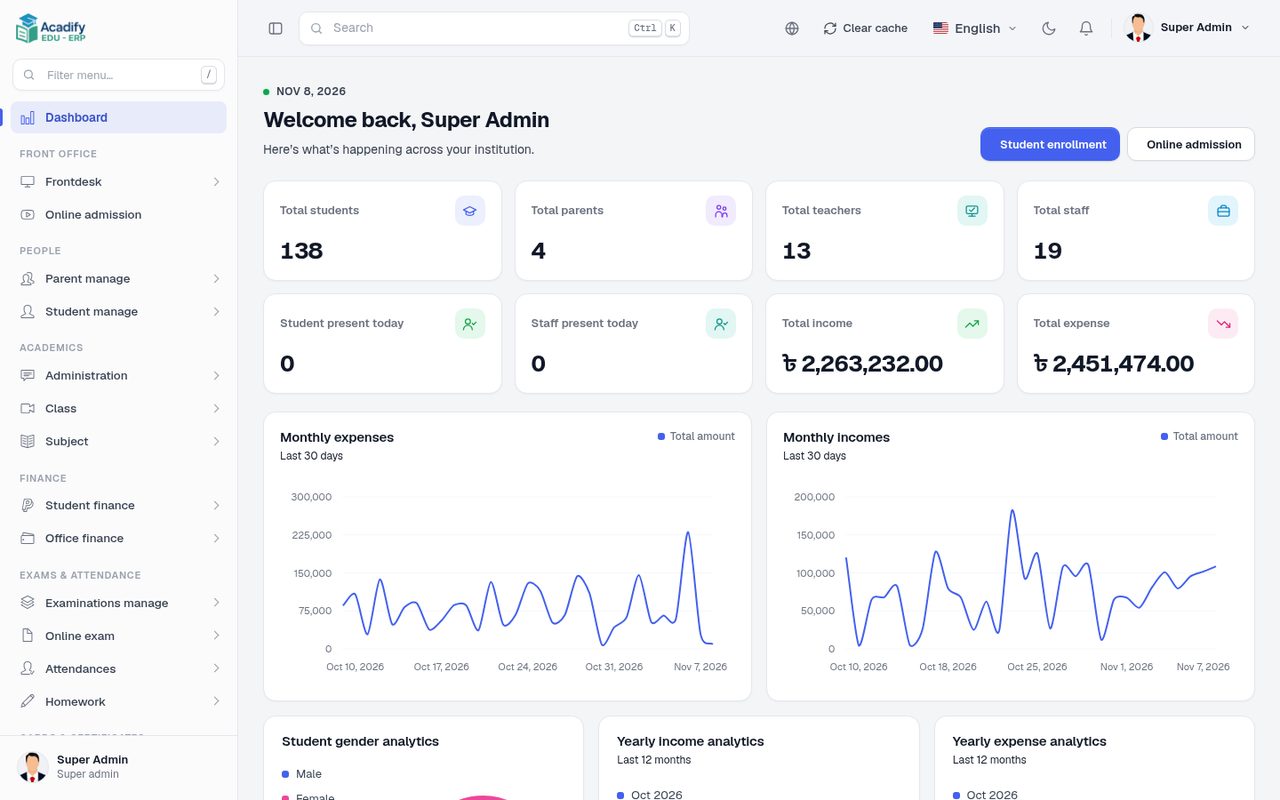
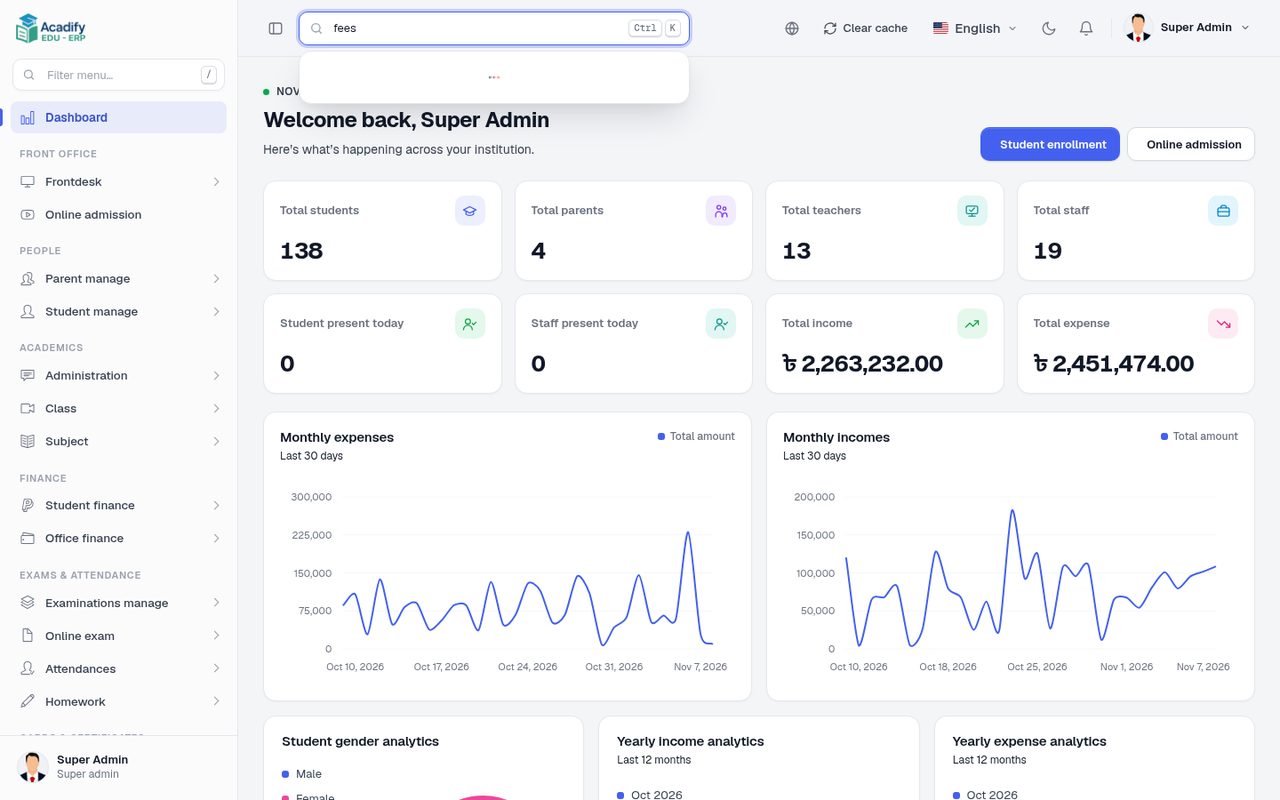
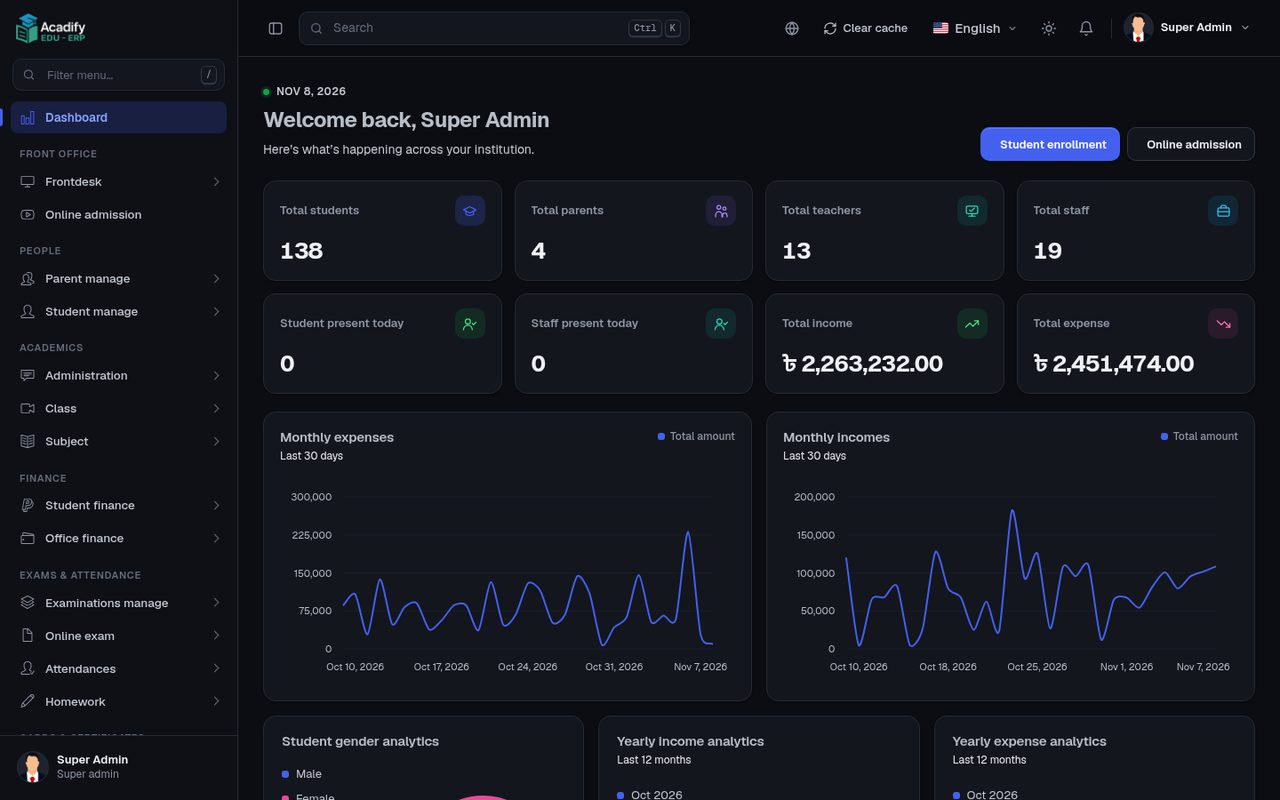
What each person sees depends on their role and permissions (Roles and permissions). Teachers, students and parents get their own panels, described below.
Setting Up a School
A fresh installation is empty. Create the building blocks in this order, because each step uses the previous ones:
- , and select it as current in .
- , , , .
- and , then to combine classes with their sections.
- , then for every staff member. Give teachers the role Teacher.
- , then to assign a teacher to every subject of a class.
- for daily attendance.
- and .
- Students: , then add, enrol or import students; parents in .
- Fees: , , .
- Exams: , , , and .
Students and Parents
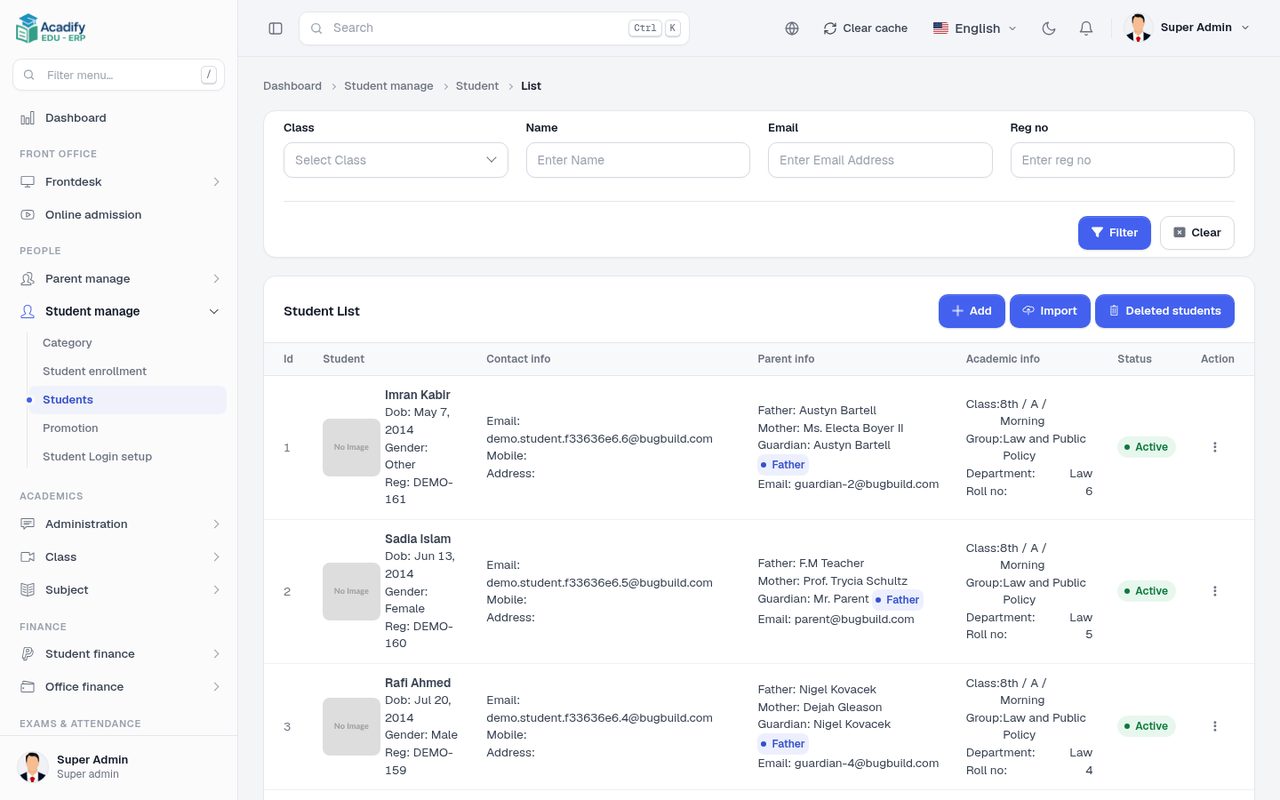
- : add, edit, filter by class, import students from a spreadsheet, and restore deleted students.
- places students in a class for the academic year; moves them to the next class.
- lists the applications sent from the website’s admission form.
- : parents and their children; and for portal passwords.
Staff, Teachers and Payroll
- : designations, roles, employees and their logins.
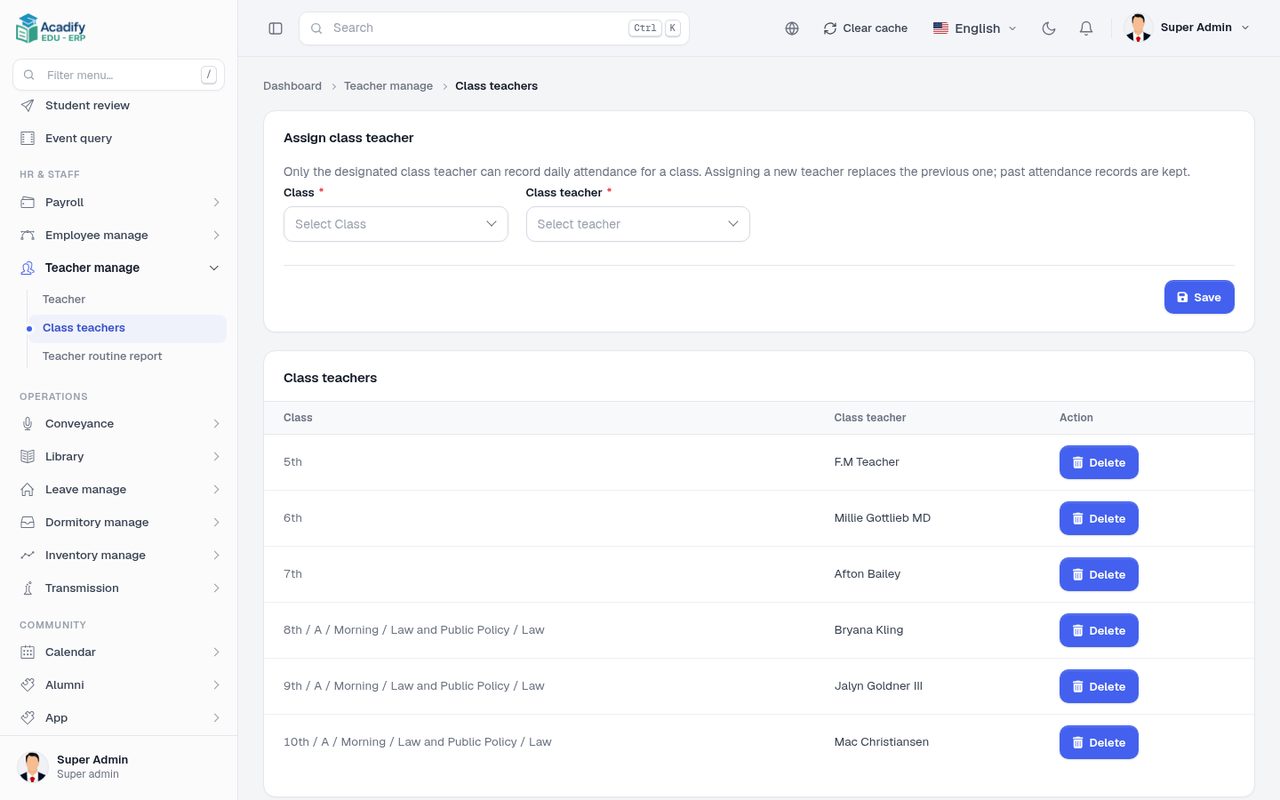
- : teachers, class teachers and the teacher routine report.
- : generate and pay salaries; : leave types, assignments and requests.
- for staff.
Exams, Marks and Results
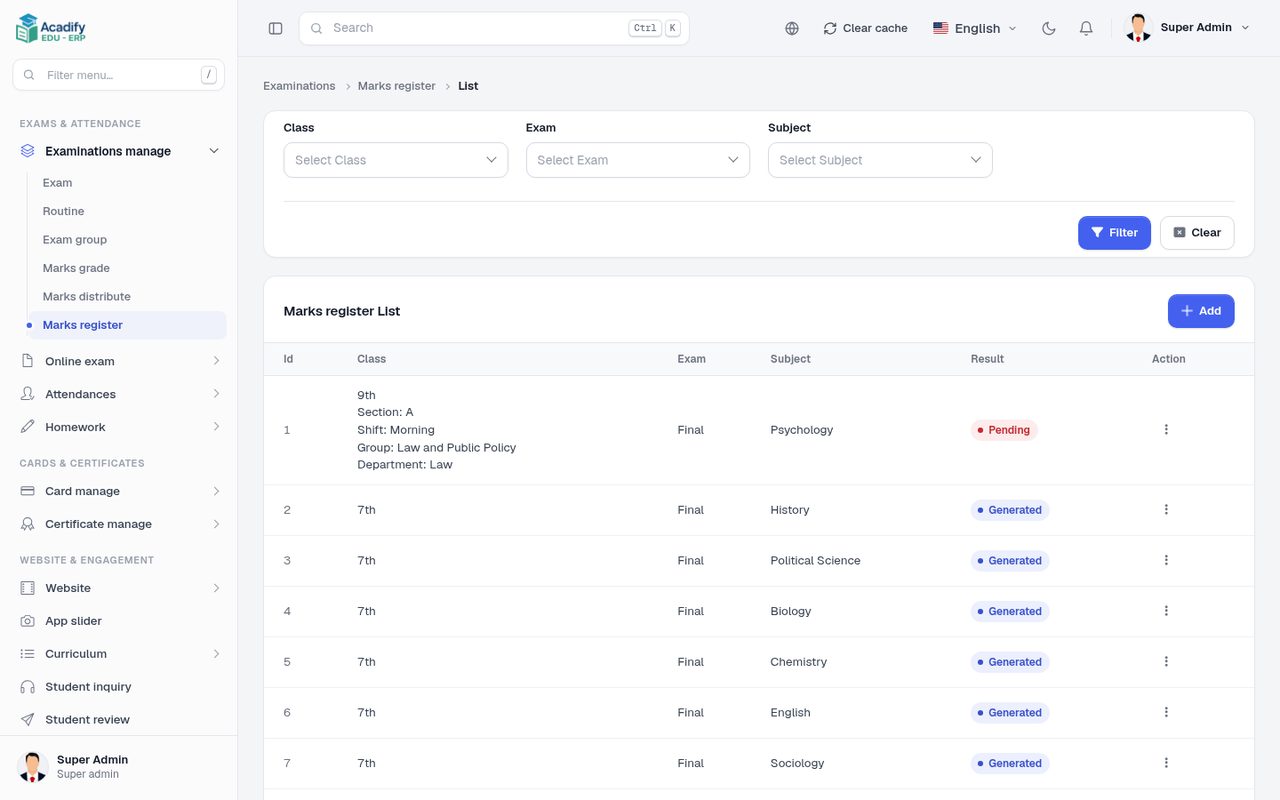
- : exams, exam routine, exam groups, marks grades, marks distribution and the marks register.
- Results are generated from the marks register (also every night by the scheduler). Students and parents look them up on the website’s result page and in their portals; reports in , , and .
- : question groups, a question bank and online exams assigned to classes; students take them in their portal and in the app.
- for exam admit cards.
Attendance and Homework
- : student, employee and exam attendance, with reports in .
- : homework for a class and subject, submitted work and grades, and evaluation reports.
Fees and Office Finance
- : fees types, groups and banks; assign fees to classes or students; Fees collect takes payments and prints receipts.
- : banks, account heads, bank accounts, income and expenses.
- : fees collection, fees due, fees fine, income, expense, account statement, payroll.
Library, Transport, Dormitory and Inventory
- : book categories, books, members, issue and return.
- : pickup locations, paths, vehicles, assignments and transport fees.
- : dormitory types, dormitories, room types, rooms and assignments.
- : suppliers, stores, units, categories, products, purchases, sales and issues, with stock, purchase, sales and profit reports.
- : enrollment queries, postal records, guest logbook, call journal and complaints.
Certificates and ID Cards
- : ID card templates and student and employee ID cards (PDF).
- : certificate templates and student and employee certificates (PDF).
- Students can look up their ID card and certificates on the website.
Notices, Calendar and Messages
- : notices shown on the website, in the portals and in the app.
- : holidays, events and celebrations.
- : email and SMS templates, send email or SMS to groups, and logs.
- : answer visitors (Live chat).
Website and App Content
- : slider, FAQs, notices, services, blogs, testimonials, social links, sections, page sections, theme appearance, homepage widgets, Themes and Live chat.
- : course categories, subjects, organisations, lessons, sections, FAQs, courses and orders for the website’s course pages.
- and , , : content of the mobile app. lists app activity.
- : who changed what in the admin panel.
The Teacher Panel (Web)
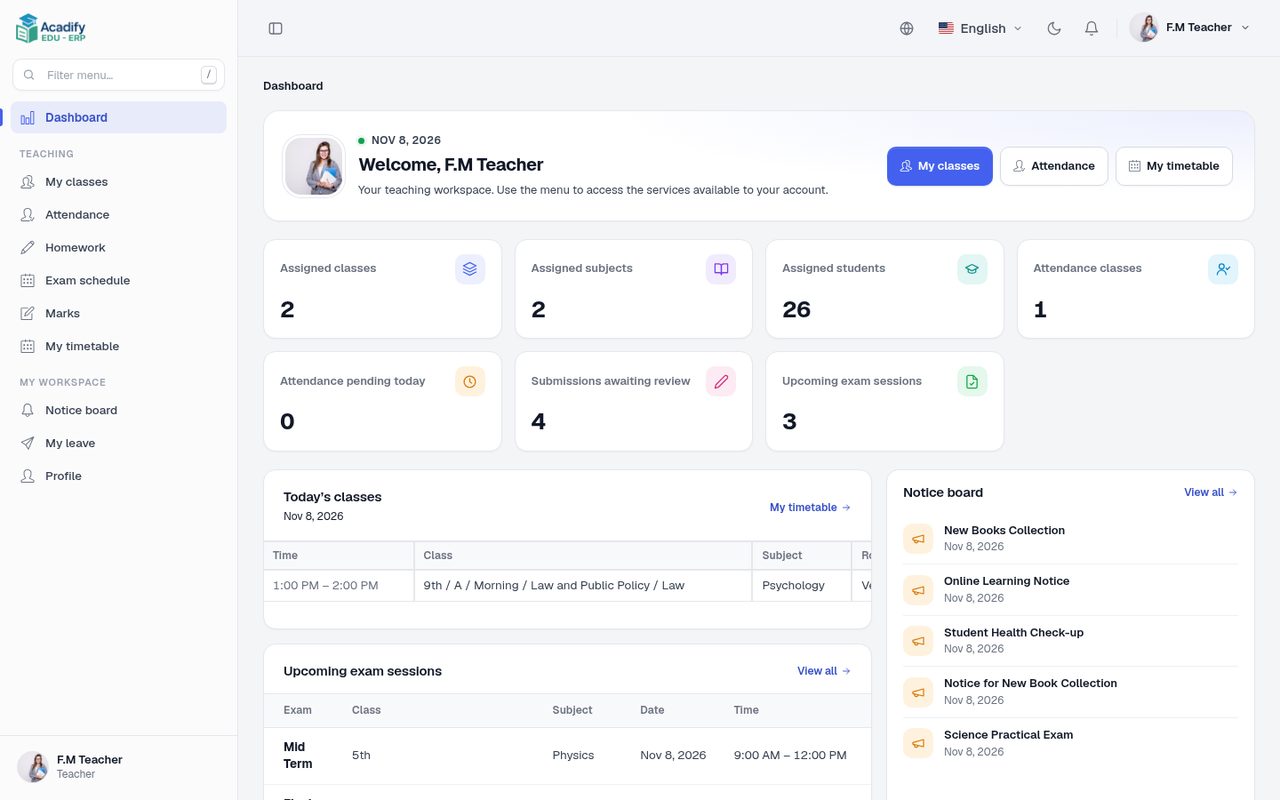
Teachers sign in at the same /login and land in their own panel. Everything is limited to the classes and subjects assigned to them for the current academic year
(Teacher assignments):
| Menu | What the teacher does |
|---|---|
| Dashboard | Assigned classes, subjects and students, attendance pending today, submissions awaiting review, today’s classes, upcoming exams and the latest notices. |
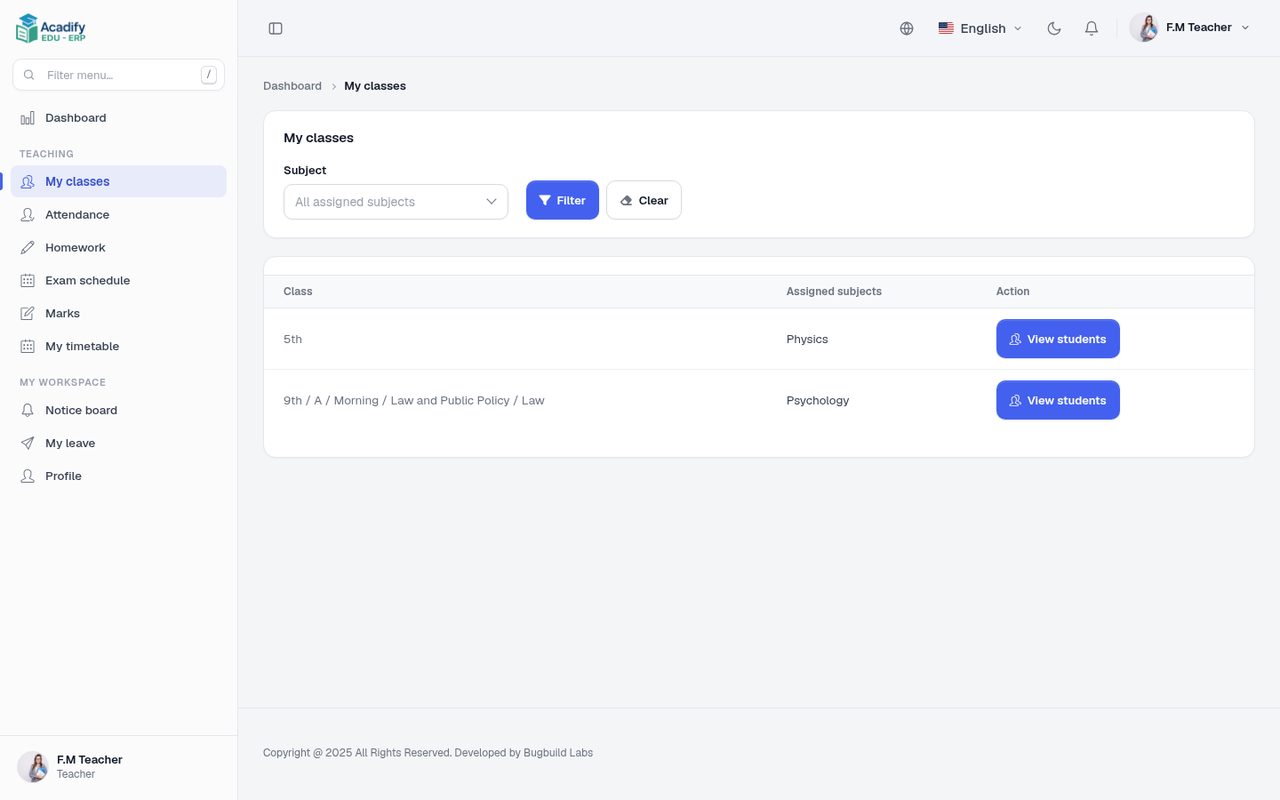
| My classes | Their class contexts and subjects, and the student list of each. |
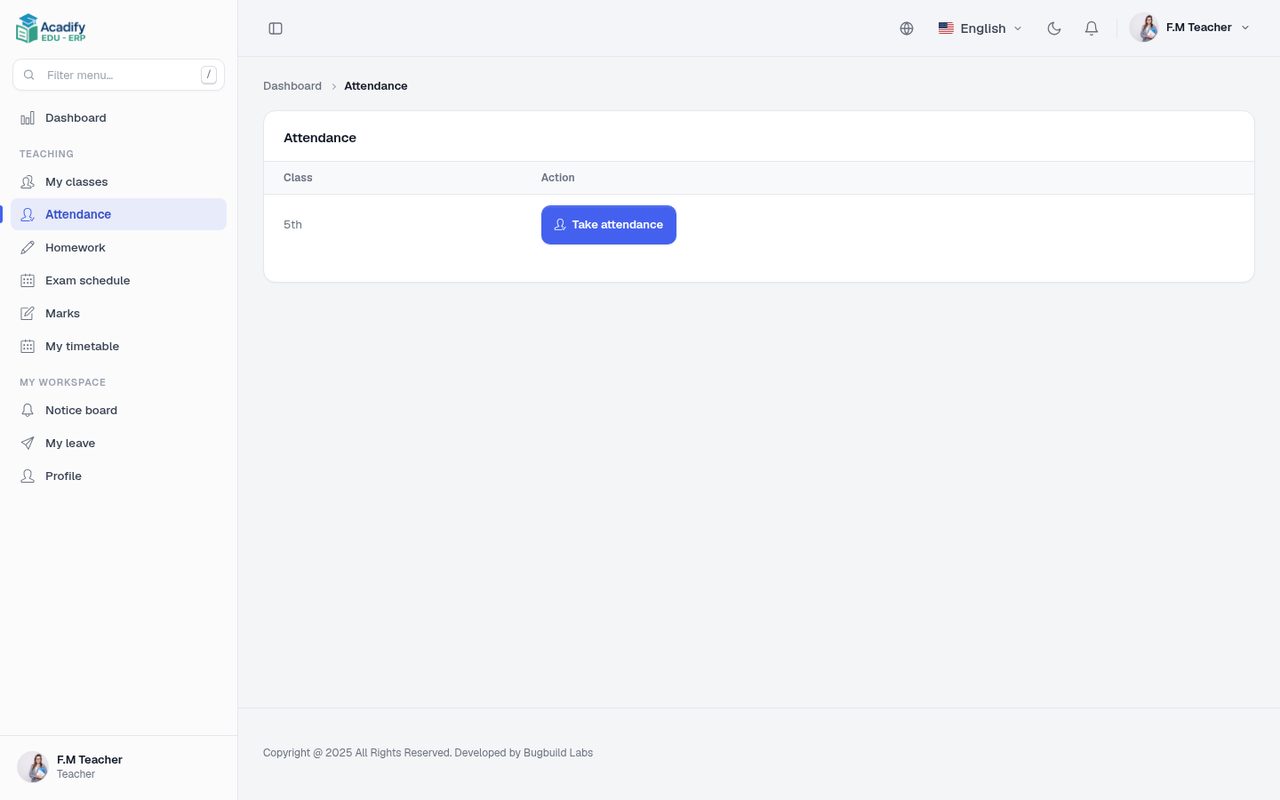
| Attendance | Take daily attendance for the classes where they are class teacher. |
| Homework | Create and edit homework for their subjects, review submissions and grade them. |
| Exam schedule | Upcoming exam sessions of their subjects. |
| Marks | Enter marks for their subjects; a mark sheet is locked once it is saved. |
| My timetable | Weekly lessons from the class routines. |
| Notice board, My leave, Profile | School notices, leave requests and their own profile. |
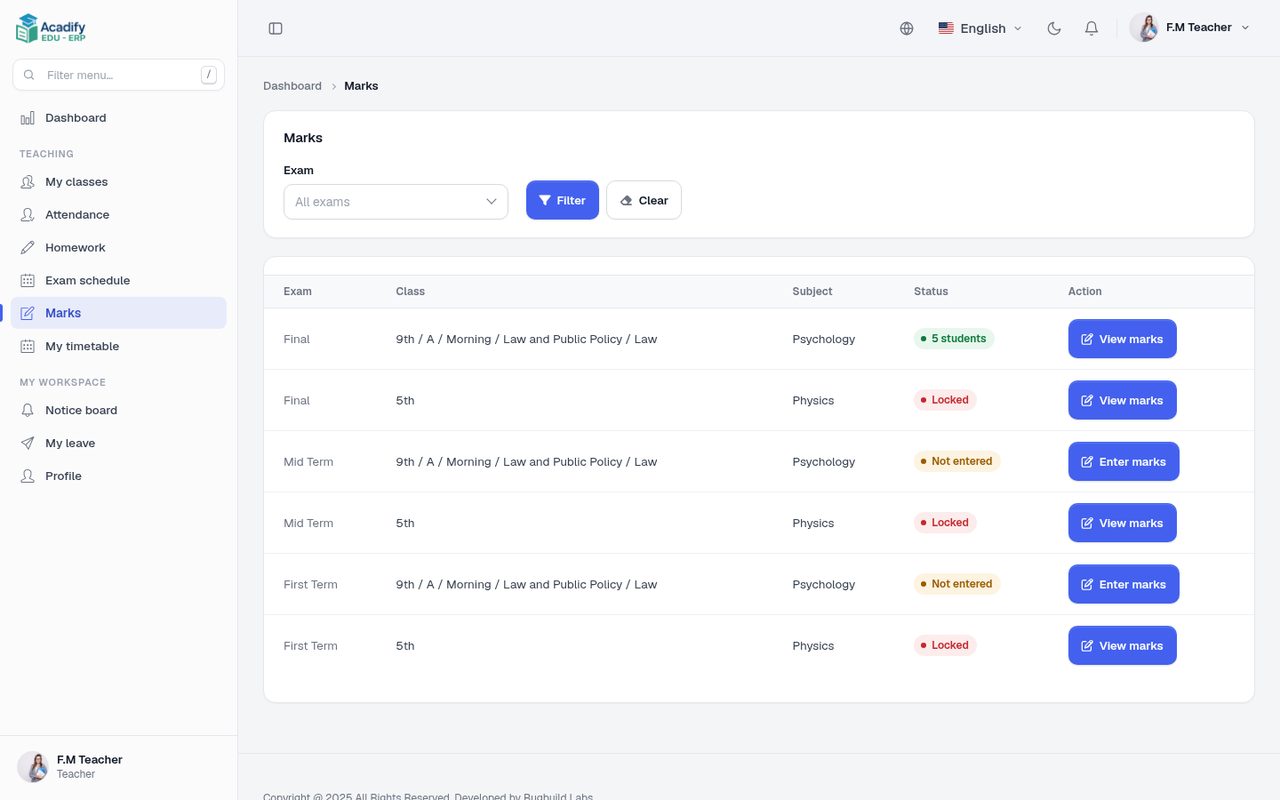
The same work is available in the mobile app’s teacher experience (Mobile App).
Student and Parent Portals
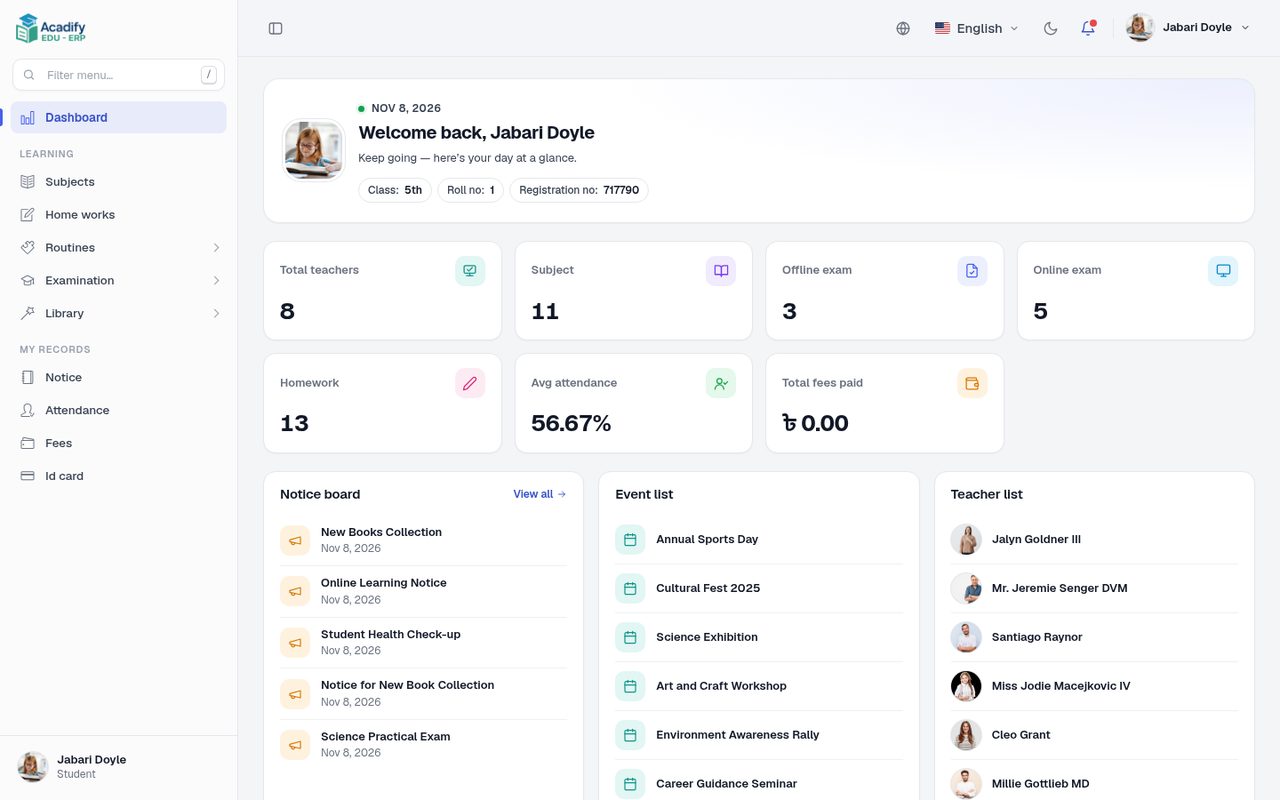
Students and parents also sign in at /login. Students see their subjects, homework, routines, examinations and results, library, notices, attendance, fees and ID card.
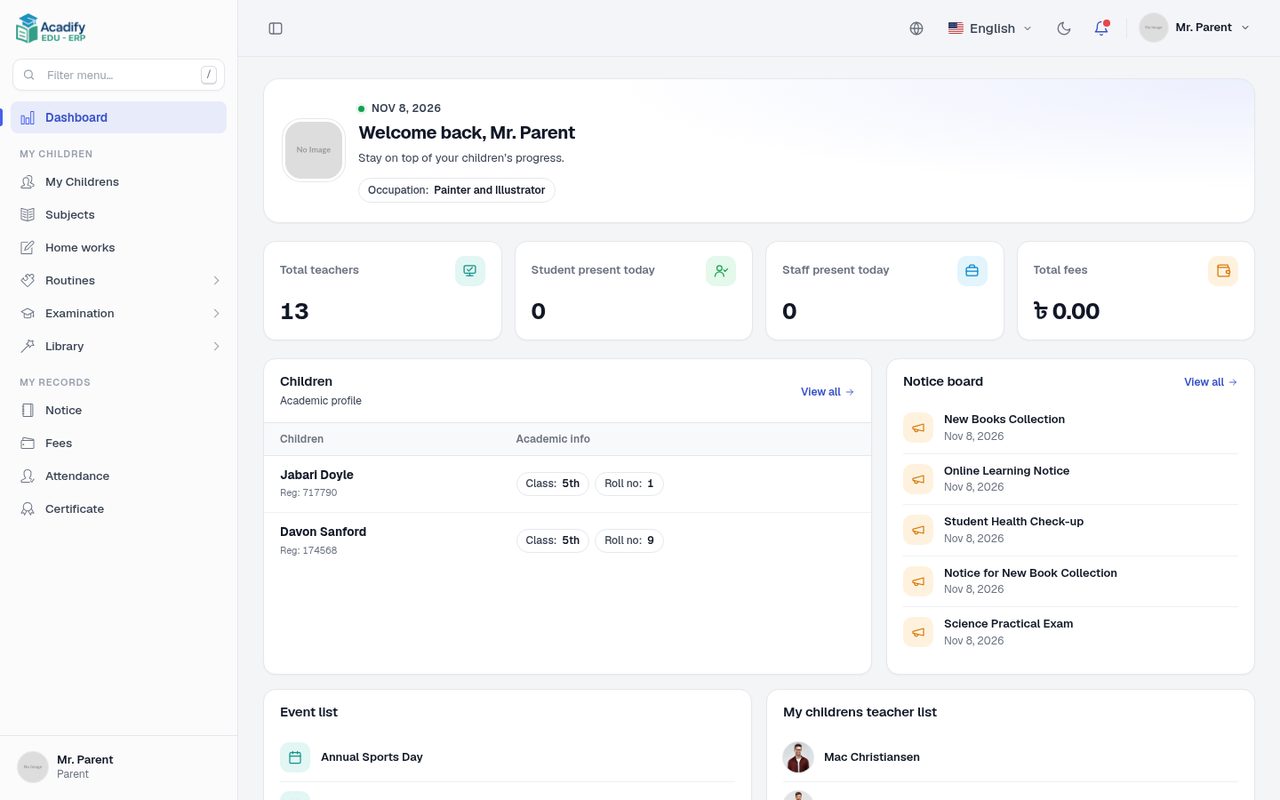
Parents see the same for each of their children and their children’s teachers. Students also have the mobile app; parents use the website.
Settings
| Page | What it holds |
|---|---|
| School name, current academic year, language, currency, time zone, date and time formats, branding, contact details | |
| SMTP and email signature (Mail) | |
| Google reCAPTCHA keys (used on the login form when switched on) | |
| , | Basic lists (for example blood groups, religions, genders) and the weekly days off |
| The scheduled tasks run by cron | |
| Stripe and bank transfer for course checkout (Course payments) | |
| Install new releases (System Update) |