Acadify EDU ERP – School Management System (Website, Admin Panel & Student/Teacher App)
Mobile App
Configure, rebrand and build the Flutter app for students and teachers
About the App
Main_Files/AppSourceCode is one Flutter project for Android and iOS. It connects to your Acadify website over the REST API
(/api/v1), so install the website first. The app has no data of its own: accounts, classes, homework, marks and notices all come from your site.
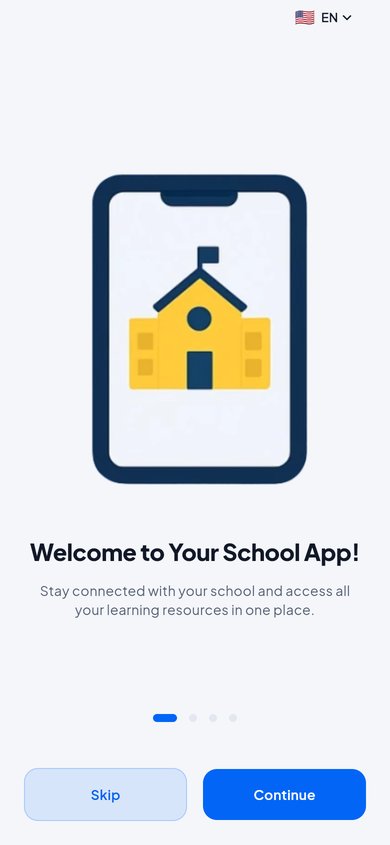
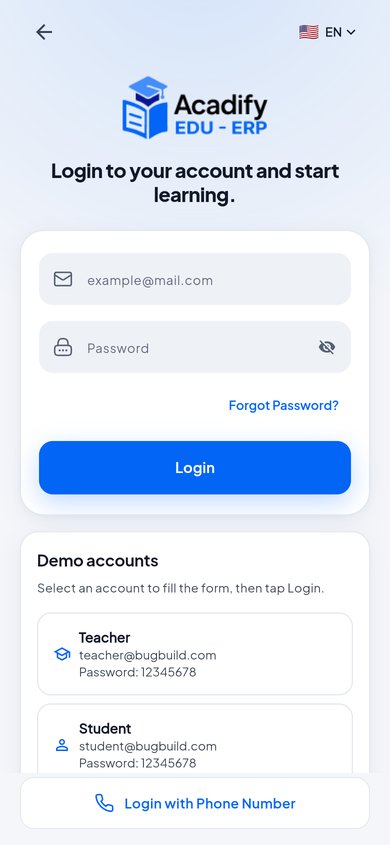
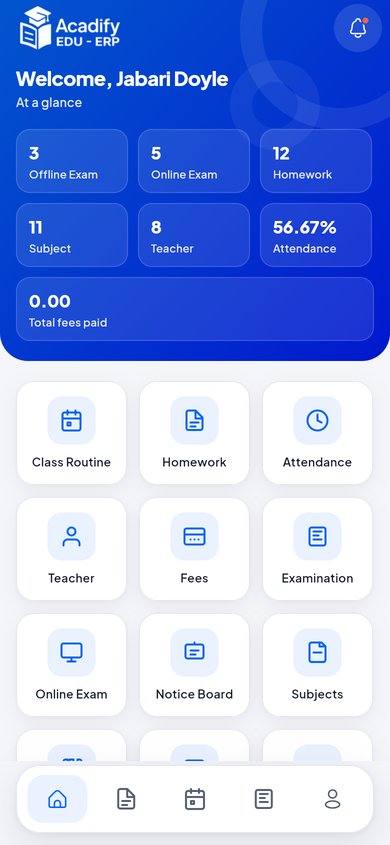
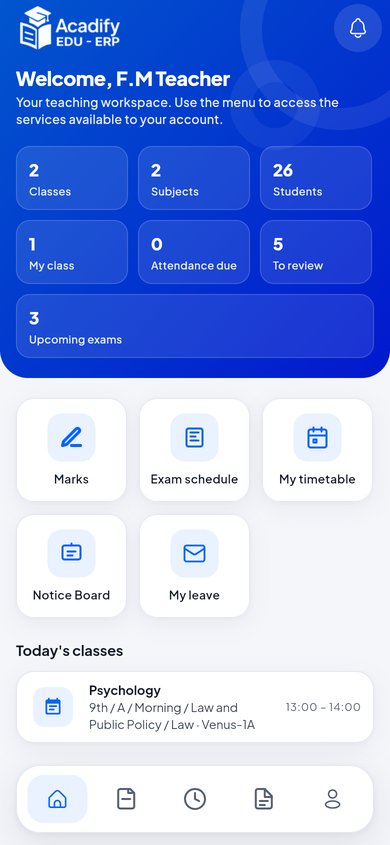
One App for Students and Teachers
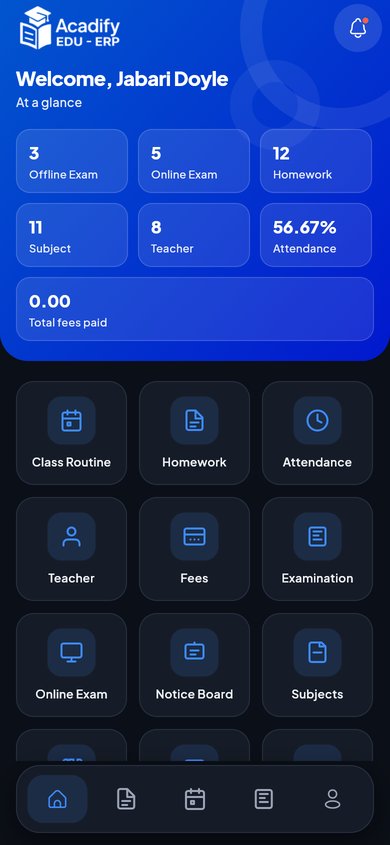
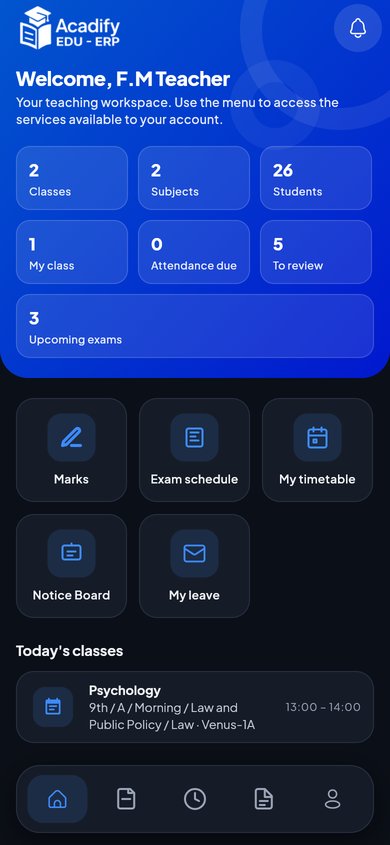
After login the app reads the account’s role and opens the matching experience. You build and publish one app.
| Role | What the app shows |
|---|---|
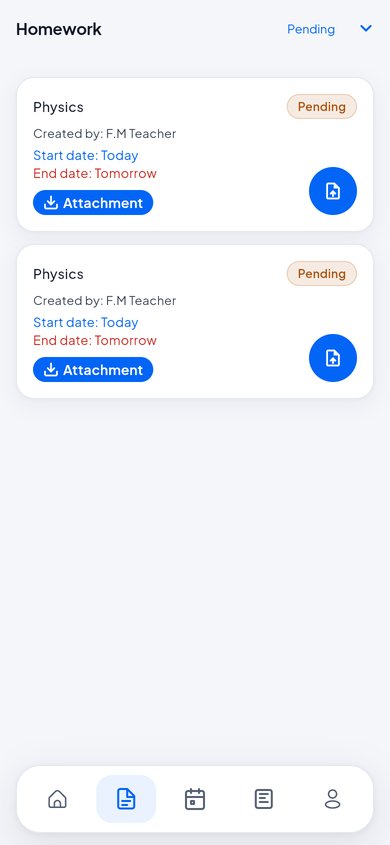
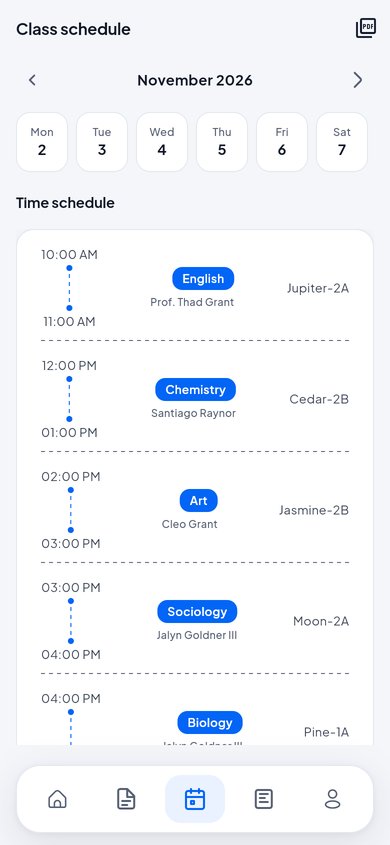
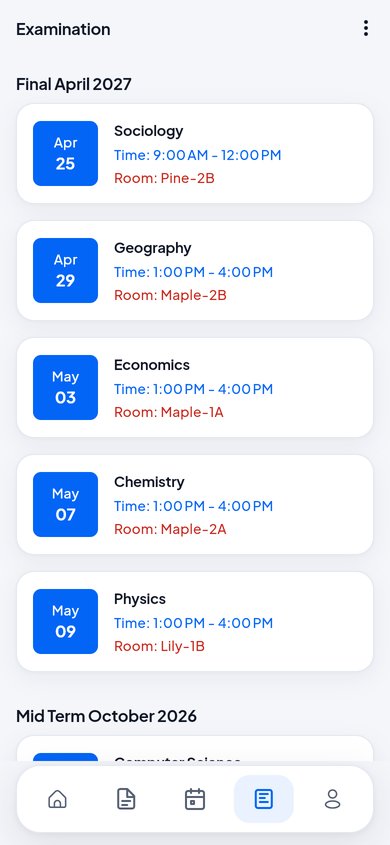
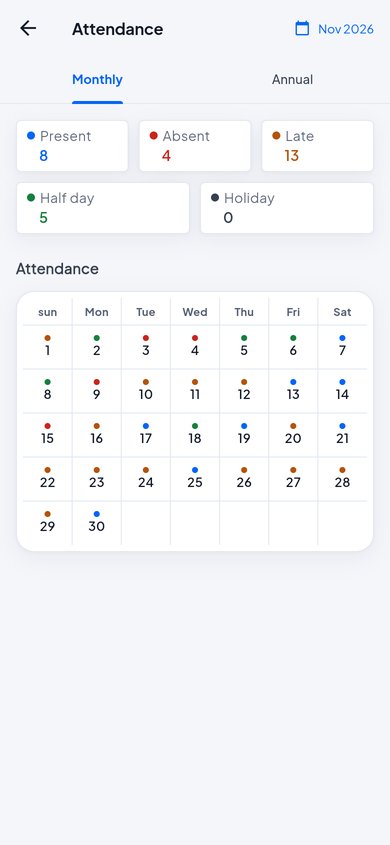
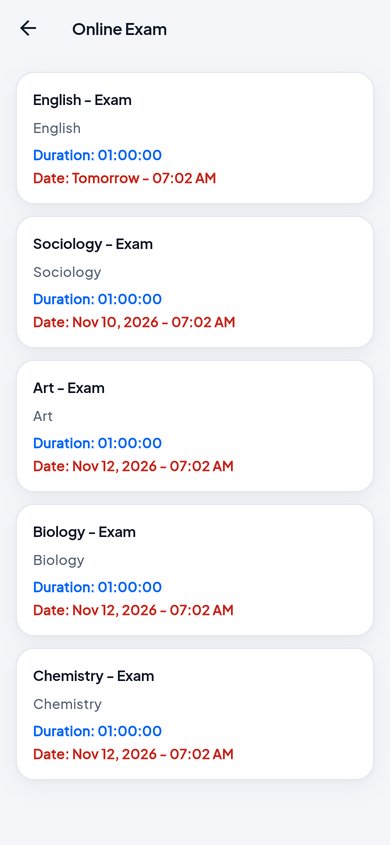
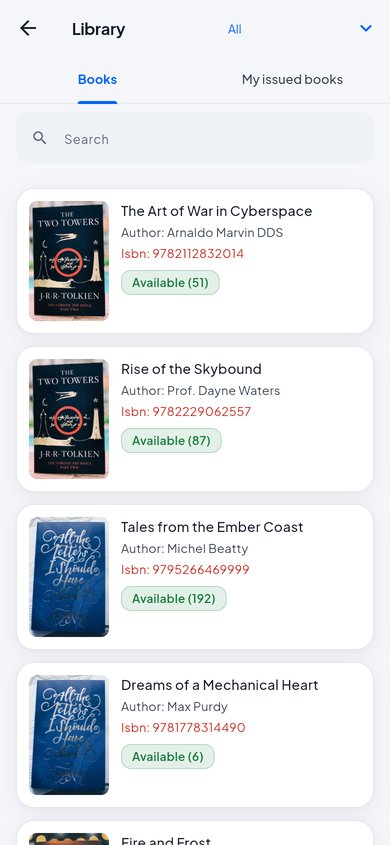
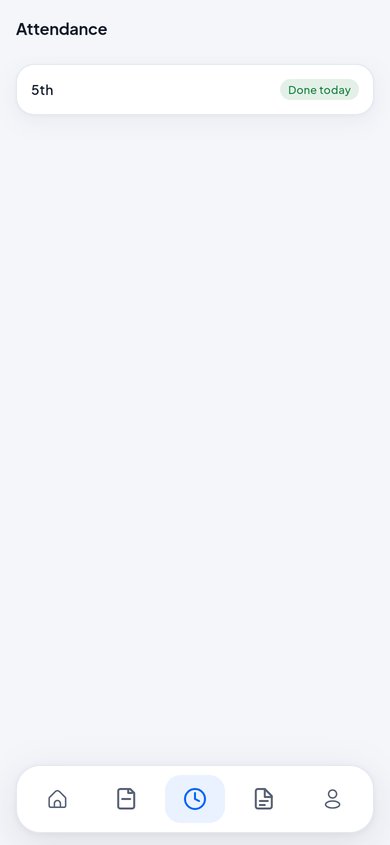
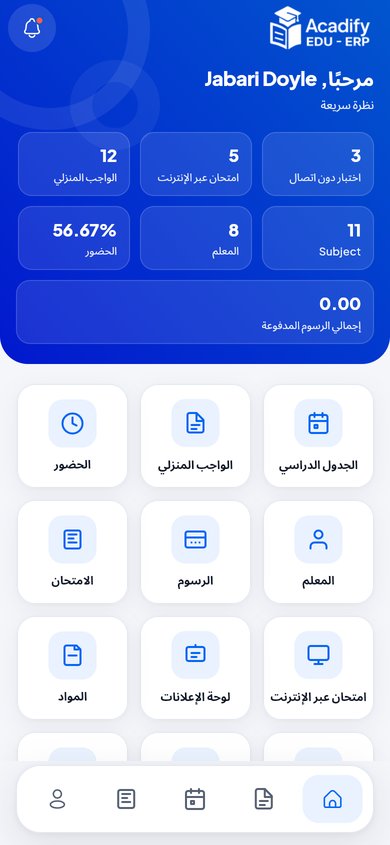
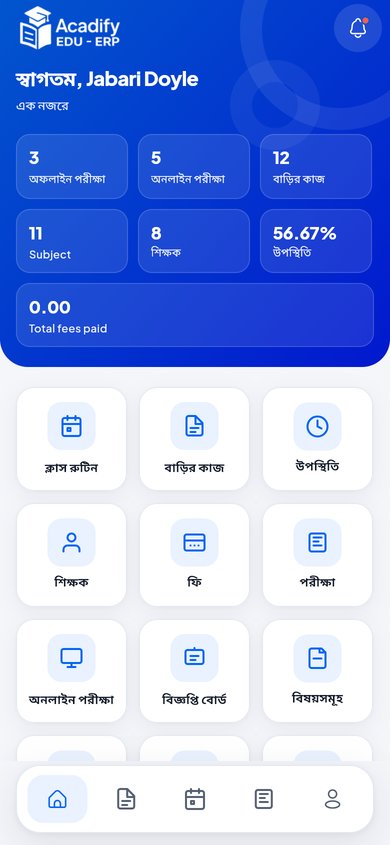
| Student | Dashboard, homework (view, submit with an attachment), class routine (and PDF), exam routine, assigned exams, mark sheet, online exams (take, submit, results), attendance (monthly and yearly), fees with receipt download, notices, subjects, teachers, library (search, issued books), transport, dormitory, events, ID card, notifications. |
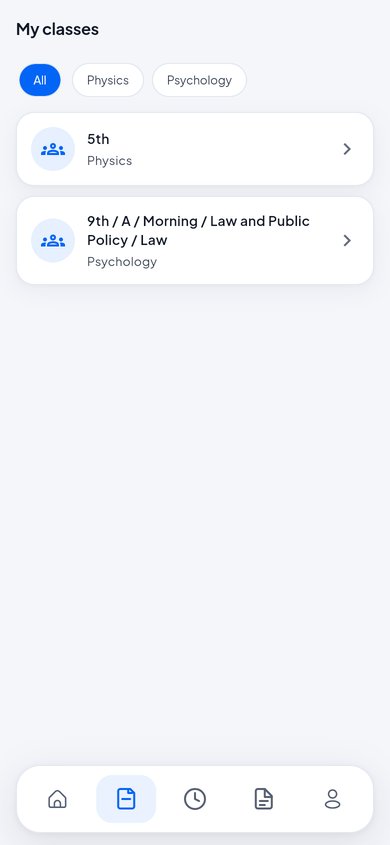
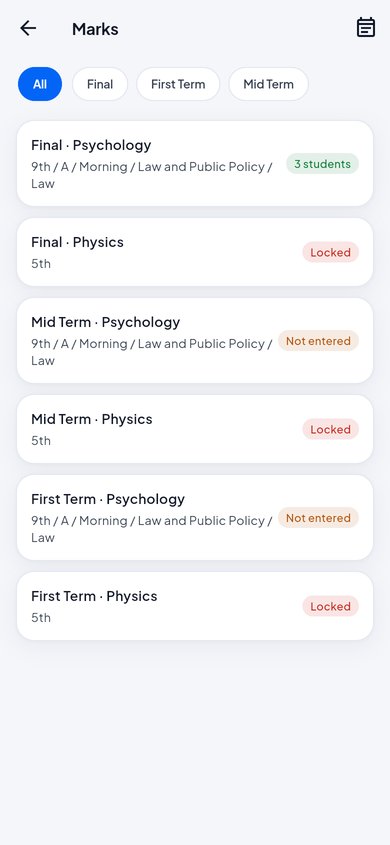
| Teacher | Dashboard, my classes and student lists, take attendance (class teachers), homework (create, edit, grade), marks entry, exam schedule, timetable, leave, notices, notifications, profile. |
| Parent, admin, staff | A friendly screen asking them to use the school website. |
Teachers see only their own classes and subjects, exactly as in the teacher panel; assignments are made on the website (Teacher assignments).
Requirements
- Flutter 3.44 (stable channel); the project allows Dart SDK
>=3.4.4 <4.0.0. - Android Studio or VS Code with the Flutter plugin, and the Android SDK.
- For iOS: a Mac with Xcode and CocoaPods. The project targets iOS 12.0 and later.
- Your Acadify website installed and reachable over HTTPS, with
JWT_SECRETset (php artisan jwt:secret).
Open and Run
cd AppSourceCode
flutter pub get
flutter run --dart-define=API_BASE_URL=https://your-domain.com/api/v1
Use a copy of the folder for your work, so you always have the original to compare with.
Connect the App to Your Site
The API address is in lib/utils/end_points.dart:
class EndPoints {
  static const String baseUrl = String.fromEnvironment(
    'API_BASE_URL',
    defaultValue: 'https://your-domain.com/api/v1',
  );
Either replace the defaultValue with your address, or leave it and pass the address at build time with
--dart-define=API_BASE_URL=https://your-domain.com/api/v1. The address must end in /api/v1, without a trailing slash.
Use HTTPS. Android and iOS block plain http:// connections in release builds. For an Android emulator talking to a site on your own computer use http://10.0.2.2:8000/api/v1 in a debug build.
App Name, Package ID and Bundle ID
You must change the package ID before publishing. The project ships with the placeholder com.example.my_school (Android) and
com.example.mySchool (iOS). Google Play and the App Store reject com.example IDs, and the ID cannot be changed after the first upload. Use your own reverse domain, for example com.yourschool.app.
Android
- In
android/app/build.gradle.ktschange bothnamespaceandapplicationId:android { namespace = "com.yourschool.app" ... defaultConfig { applicationId = "com.yourschool.app" - Move
android/app/src/main/kotlin/com/example/my_school/MainActivity.ktto the matching folder (for examplekotlin/com/yourschool/app/) and change its first line topackage com.yourschool.app. - The app name is
android:label="Acadify"inandroid/app/src/main/AndroidManifest.xml.
iOS
- Open
ios/Runner.xcworkspacein Xcode, select the Runner target → Signing & Capabilities and set the Bundle Identifier (this changesPRODUCT_BUNDLE_IDENTIFIERinios/Runner.xcodeproj/project.pbxproj). - The app name is
CFBundleDisplayName(andCFBundleName) inios/Runner/Info.plist, set to “Acadify”.
The Dart package name my_school in pubspec.yaml is only used inside the code; you do not need to change it. The version is version: 1.2.0+2 in pubspec.yaml; raise the number after + for every store upload.
Icons, Splash Screen, Logo and Colour
Launcher icon
Replace assets/images/app_icon.png (square PNG, 1024 × 1024 recommended) and run:
dart run flutter_launcher_iconsThe settings are in the flutter_launcher_icons: block of pubspec.yaml.
Splash screen
Replace assets/images/splash_icon.png, change color in the flutter_native_splash: block of pubspec.yaml if you like (default #0265F6), and run:
dart run flutter_native_splash:createLogo inside the app
Replace assets/images/logo_light.png and assets/images/logo_dark.png (used on light and dark backgrounds).
Brand colour (automatic)
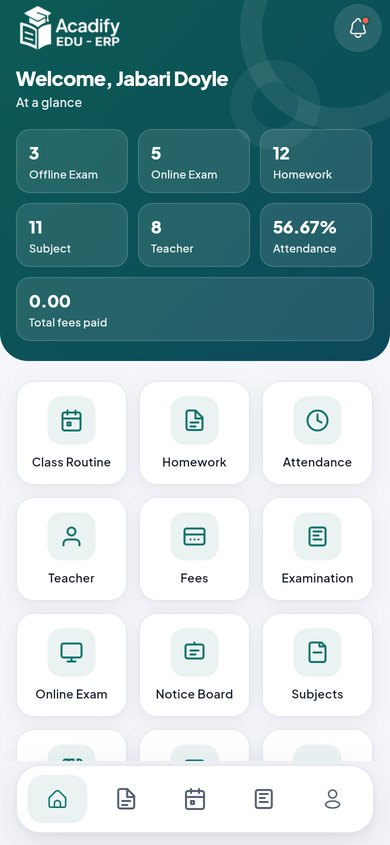
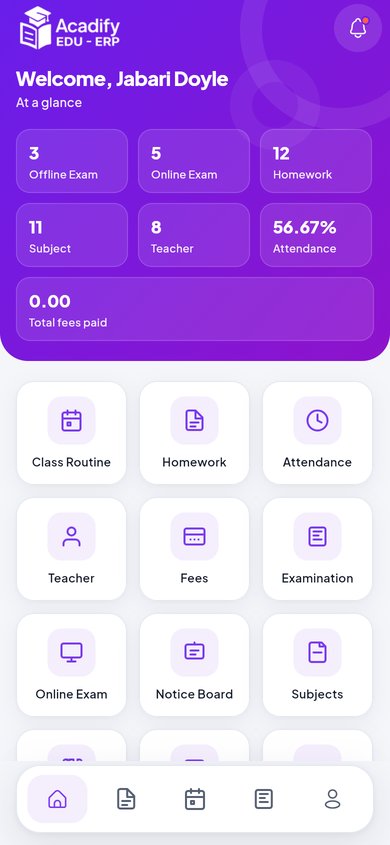
The app uses the accent colour the school picks in on the website. It reads it from /api/v1/app/settings and remembers it on the device,
so a new colour appears in the app without a new build. Without a colour it uses #0265F6.
Login, Languages and Notifications
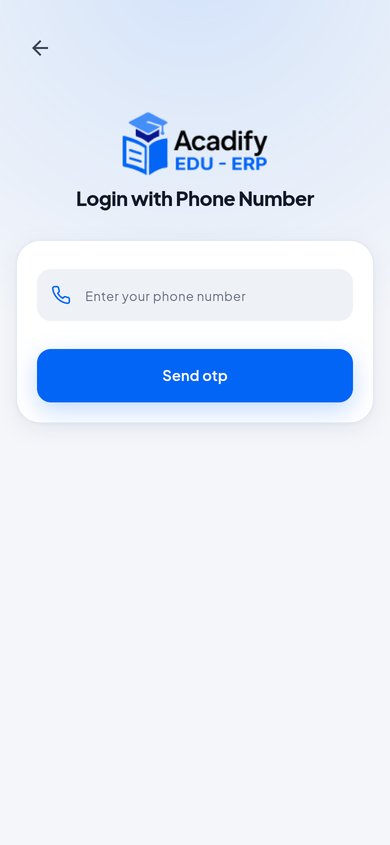
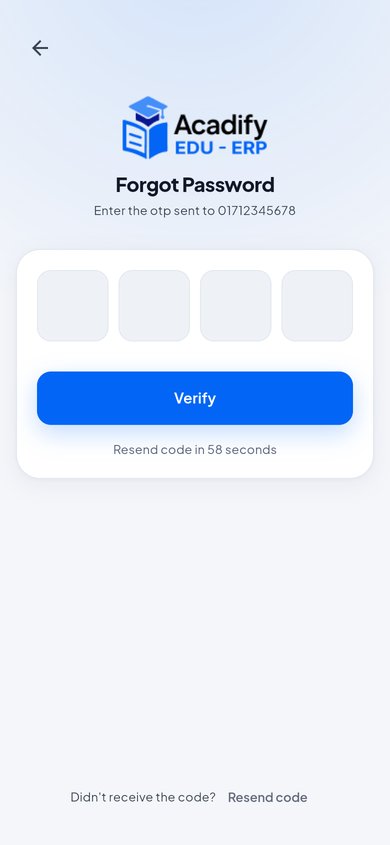
- Login with email and password, or with phone number and a one-time code. Forgot password sends a one-time code by email (needs mail settings) or SMS.
- Theme: light, dark or follow the system, chosen in the profile menu.
- Languages: the app downloads its languages and texts from your website (English, Bangla, Arabic, Spanish, French, Portuguese and any language you add). Arabic and other RTL languages mirror the layout. Edit the texts in .
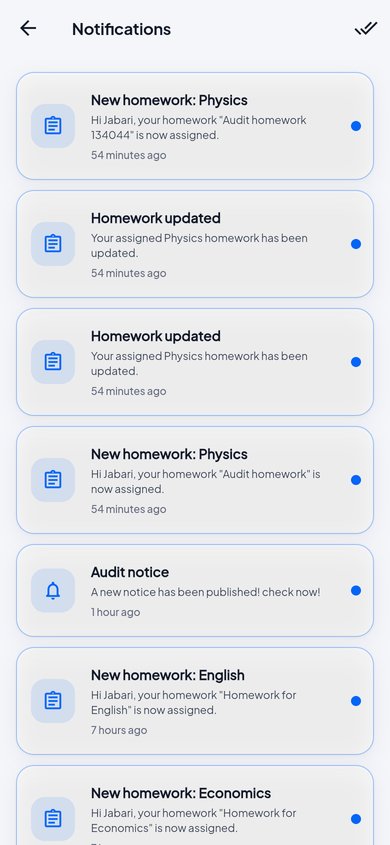
- Notifications: the notification screen lists the user’s notifications from your site, marks unread ones with a dot and opens the related screen. The app does not use Firebase push notifications.
Demo Accounts
When the app is connected to a server in demo mode (APP_DEMO=true) the login screen shows Teacher and Student demo cards. On the live demo:
| Role | Password | |
|---|---|---|
| Student | [email protected] | 12345678 |
| Teacher | [email protected] | 12345678 |
On your own server (demo mode off) the cards are hidden; sign in with real student and teacher accounts.
Android Signing
Out of the box, release builds are signed with the debug key so that flutter run --release works. Google Play needs your own key:
- Create a keystore (keep it and its passwords safe; you need them for every update):
keytool -genkey -v -keystore ~/upload-keystore.jks -keyalg RSA -keysize 2048 -validity 10000 -alias upload - Create
android/key.properties(never share or commit it):storePassword=your-store-password keyPassword=your-key-password keyAlias=upload storeFile=/home/you/upload-keystore.jks - In
android/app/build.gradle.ktsadd at the very top:
and insideimport java.util.Properties import java.io.FileInputStream val keystoreProperties = Properties() val keystorePropertiesFile = rootProject.file("key.properties") if (keystorePropertiesFile.exists()) { keystoreProperties.load(FileInputStream(keystorePropertiesFile)) }android { ... }add a release signing config and use it:
(replace the existingsigningConfigs { create("release") { keyAlias = keystoreProperties["keyAlias"] as String keyPassword = keystoreProperties["keyPassword"] as String storeFile = keystoreProperties["storeFile"]?.let { file(it) } storePassword = keystoreProperties["storePassword"] as String } } buildTypes { release { signingConfig = signingConfigs.getByName("release") } }buildTypesblock that usessigningConfigs.getByName("debug")).
Build for Android
flutter build apk --release --dart-define=API_BASE_URL=https://your-domain.com/api/v1
flutter build appbundle --release --dart-define=API_BASE_URL=https://your-domain.com/api/v1
The APK is in build/app/outputs/flutter-apk/, the App Bundle (for Google Play) in build/app/outputs/bundle/release/. Leave out --dart-define if you changed the default in end_points.dart.
Build for iOS
flutter build ios --release --dart-define=API_BASE_URL=https://your-domain.com/api/v1
cd ios && pod install && cd ..
Open ios/Runner.xcworkspace in Xcode, choose your team under Signing & Capabilities, then Product → Archive and upload through the Organizer.
You need an Apple Developer account.
Troubleshooting
| Problem | Fix |
|---|---|
| Cannot connect / login fails | Open https://your-domain.com/api/v1/app/settings in a browser: it must return JSON. Check the address ends in /api/v1, uses HTTPS, and JWT_SECRET is set on the server. |
| “Not supported in the mobile app” after login | The account is a parent, admin or staff account. The app is for students and teachers. |
| A teacher sees no classes | Assign subjects and class teachers on the website for the current academic year (Teacher assignments). |
| Wrong colour | Set the accent colour in and reopen the app. |
| Build errors after changing the package ID | The package line in MainActivity.kt and its folder must match namespace. Run flutter clean and build again. |
| Old icon or splash | Run the icon and splash commands again, uninstall the app from the device and reinstall. |